

Looking for Windows 10 language packs offline download options in 2026? This guide shows you how to download, install, and troubleshoot language packs without relying on Windows Update.
If you need offline downloads for Windows 10 language packs for use with Group Policy, DISM, SCCM or even directly with Windows, then there is a fully comprehensive list available below for both x86 and x64 operating systems. The downloads are in CAB format and ready for immediate use.
How to Install Windows 10 Language Packs Offline
Windows 10 Language Pack Downloads
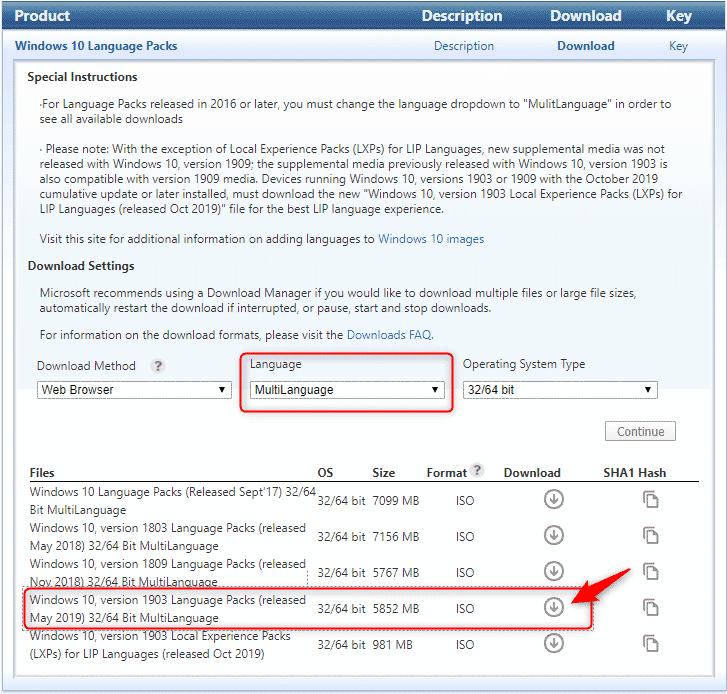
You will need to download the Windows 10 Language Packs ISO file from your Microsoft VLSC. These contain all the files that you will need to install for adding a different language.
Note that you have to change the language to Multilanguage in the drop-down menu and also use the 1903 version (this also covers 1909 version). Then download the Language Packs ISO:
Once they have downloaded, extract the ISO file using something like 7-Zip and you should see a folder structure. First, go into the LocalExperiencePack folder and take a copy of the folder for language you want, for the purposes of this guide we will use Hungarian, so we are looking for hu-hu.
Then go into the architecture you need (we are using x64) and then into the langpacks folder. This will bring up a large number of cabs files. Find the one you need (hu-hu for Hungarian) and copy this and paste all the files into a local folder. You will end up with something that looks like this:

Installing the Language Pack
You need to install the full language pack first. This is the file with the cab file extension.
To do this, run the following command, changing the filename and folder location where required:
dism /norestart /online /add-package /packagepath:"C:\TGH\langs\hu-hu\Microsoft-Windows-Client-Language-Pack_x64_hu-hu.cab"Local Experience Pack Installation
Once you have a successful language pack installation, you then need to install the Local Experience Pack. To do this, just double click on the APPX file which will bring up an installation box like this (note that it is already in Hungarian!):
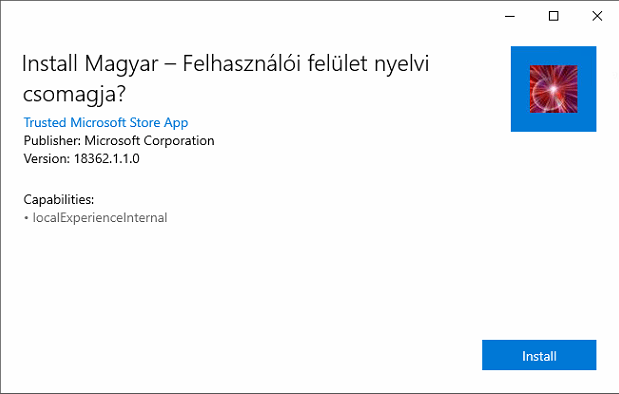
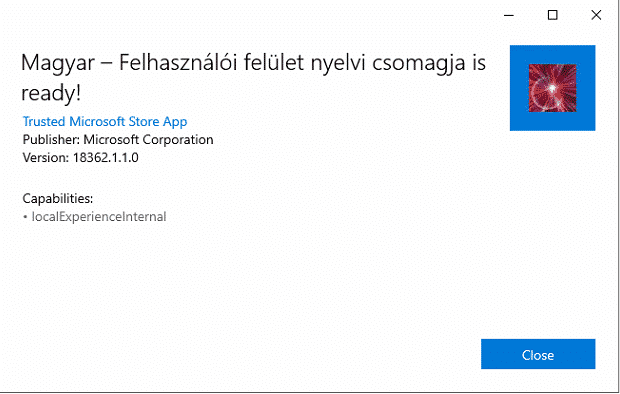
Click on the Install button to start the installation process. You will then get a notification that the installation is complete:
To ensure that you have all the available options to you for the language that you want to install, you should now pre-install the five other language extras that are:
- Basic Features
- Handwriting
- OCR
- Speech
- TextToSpeech
However, not all five extras are available for each language pack. For the Hungarian one that we are installing here, there are just three.
Download Language Features
To download these extra features, you need to go back into your Microsoft VLSC and download the Microsoft Features on Demand ISO’s.
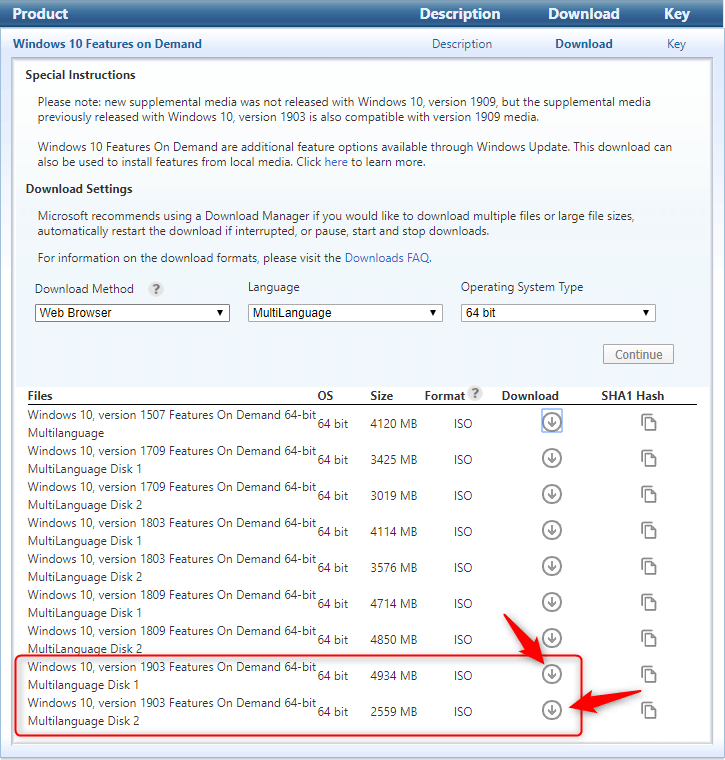
Again, using a tool like 7-Zip, extract the ISO’s and search for the files with LanguageFeatures and the shortcode of the language you want in the filename. So for example, the TextToSpeech filename for our Hungarian language is:
Microsoft-Windows-LanguageFeatures-TextToSpeech-hu-hu-Package~31bf3856ad364e35~amd64~~.cabOnce you have the files you need, copy them to the same place all your other language files are on the local machine.
Installing Language Features
The command lines below are what you need to run to install each one that is available for your own selected language.
Basic Features
dism /norestart /online /add-package /packagepath:C:\TGH\langs\hu-hu\Microsoft-Windows-LanguageFeatures-Basic-hu-hu-Package~31bf3856ad364e35~amd64~~.cabHandwriting Installation
dism /norestart /online /add-package /packagepath:C:\TGH\Microsoft-Windows-LanguageFeatures-Handwriting-hu-hu-Package~31bf3856ad364e35~amd64~~.cabOCR Installation
dism /norestart /online /add-package /packagepath:C:\TGH\Microsoft-Windows-LanguageFeatures-OCR-hu-hu-Package~31bf3856ad364e35~amd64~~.cabSpeech Installation
dism /norestart /online /add-package /packagepath:C:\TGH\Microsoft-Windows-LanguageFeatures-Speech-hu-hu-Package~31bf3856ad364e35~amd64~~.cabTextToSpeech Installation
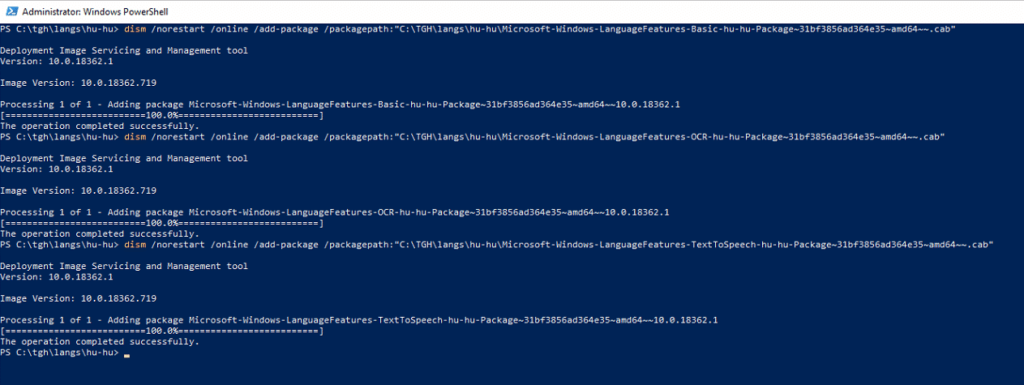
dism /norestart /online /add-package /packagepath:C:\TGH\Microsoft-Windows-LanguageFeatures-TextToSpeech-hu-hu-Package~31bf3856ad364e35~amd64~~.cabAs you go through the above processes, you should get success messages like the ones below:
Setup Language in Windows
Now that all the files required for a successful language installation are complete, you can now go into the language settings in your Windows environment to apply them.
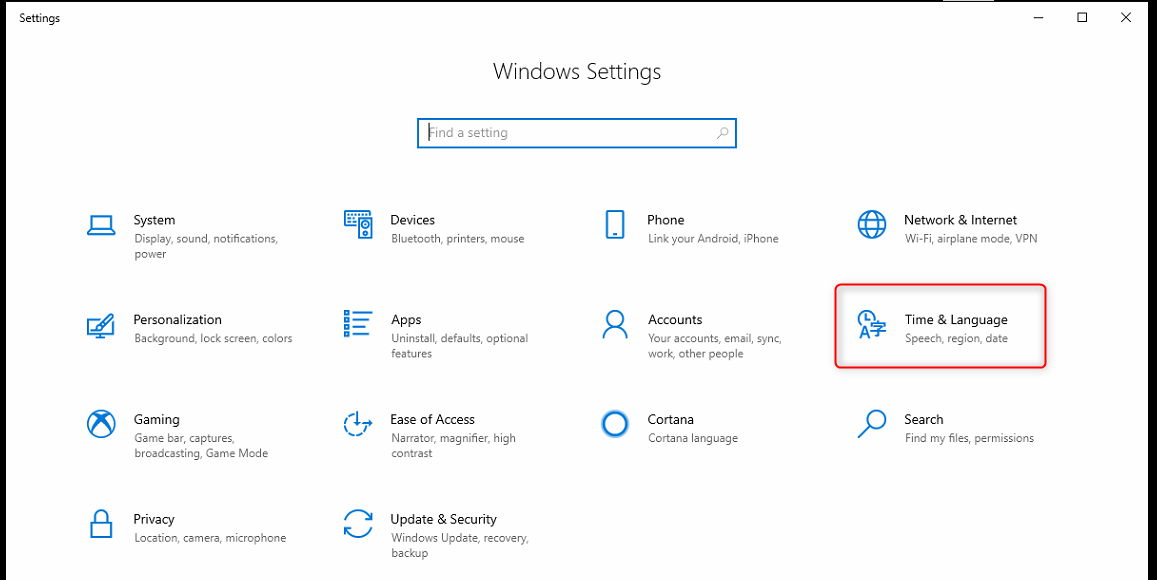
Click Start and then click on the cog icon to go into Settings. Then click on the Time & Language option:
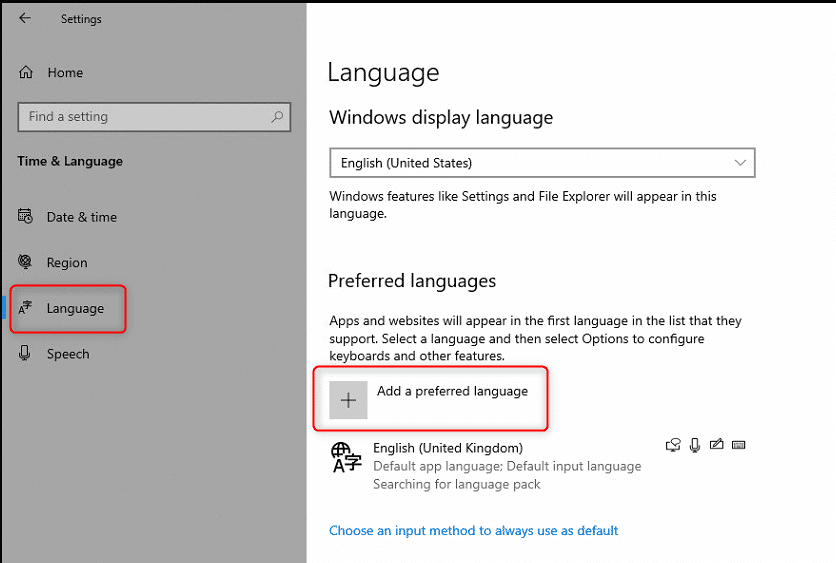
Click on Language option on the left side menu and then click Add a preferred language:
This will bring up a pop-up box. In the search area type the name of the language you want to add:
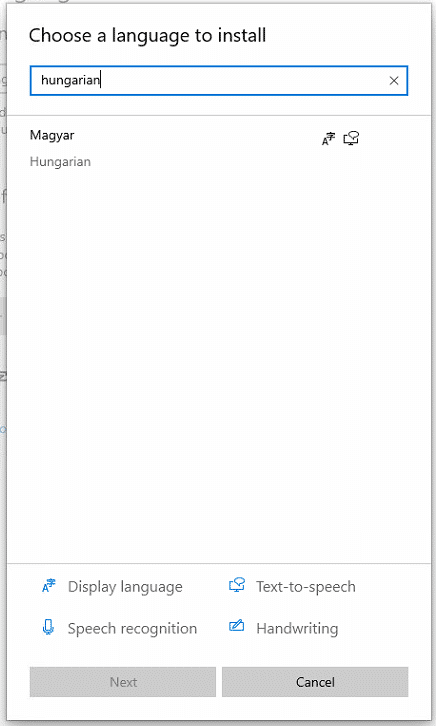
Highlight the language you want and then click the Next button at the bottom of the box.
The next box will then ask you your preferred language and if you want to Set as my display language:
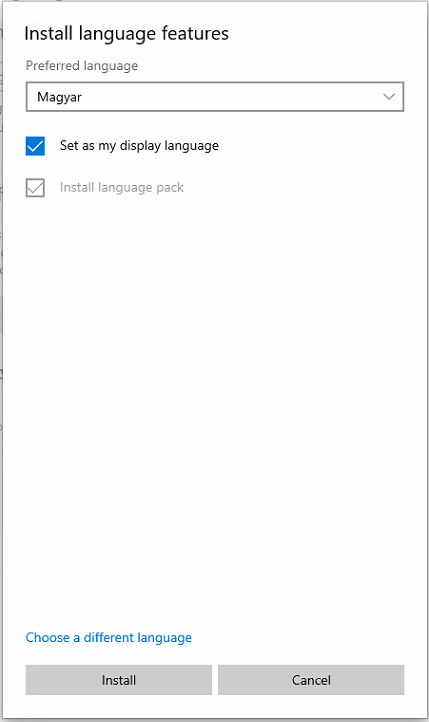
We do want to change the display language so we tick the box and then click on the Install button.
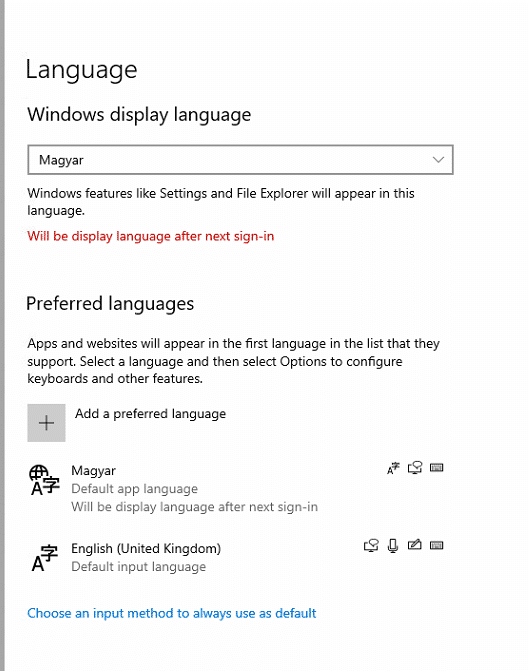
That’s finally it! You should now see that all your language settings are set to what you want them to be. Just reboot to activate the change.
Home Install of Windows 10 Language Pack
Installing the Language Pack
After the long way round of installing language packs for corporate use the home user method is very simple indeed!
Microsoft Store Installation
All you need to do is to install the language pack from the Microsoft Store.
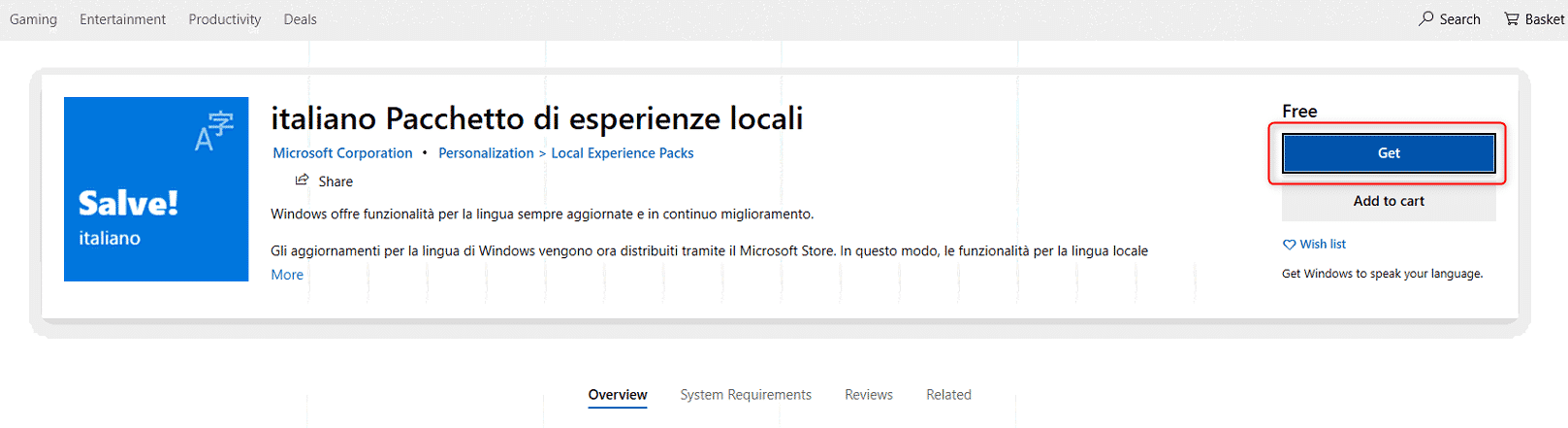
Open the Microsoft Store and then search for the Italian Language Pack:
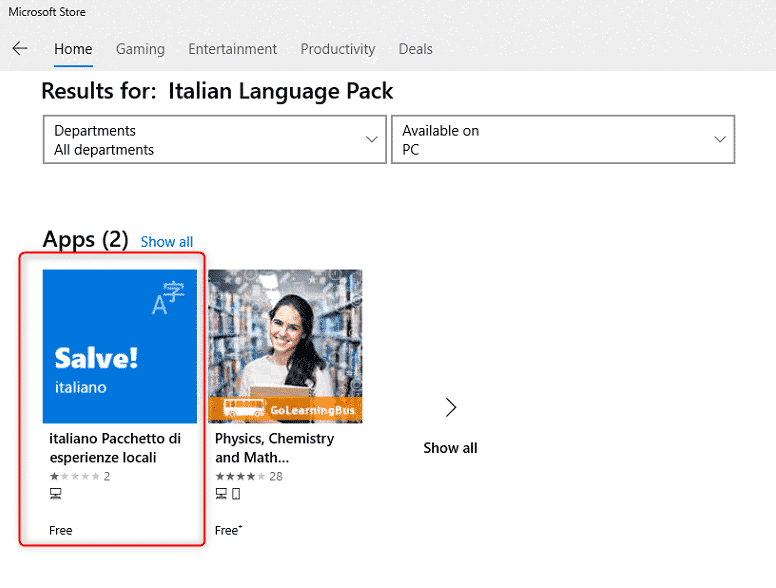
Click on it and then click on the Get button at the top right of the Store:
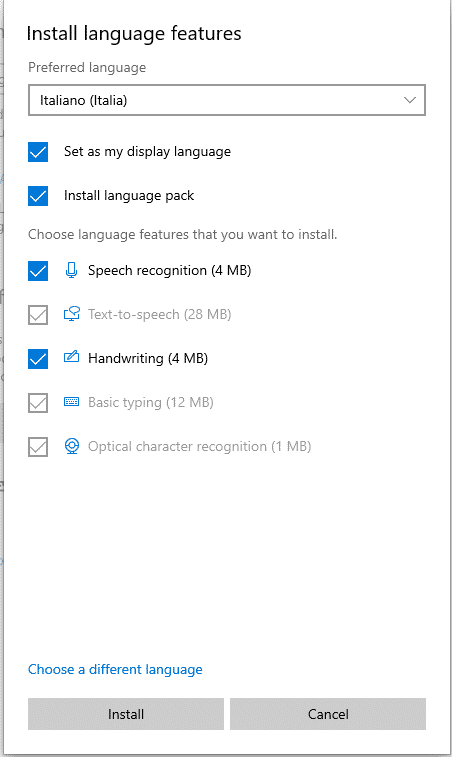
This will bring up the Install language features pop-up, go ahead and click on the Install button:
The installation process will now start and wait until it is fully complete:
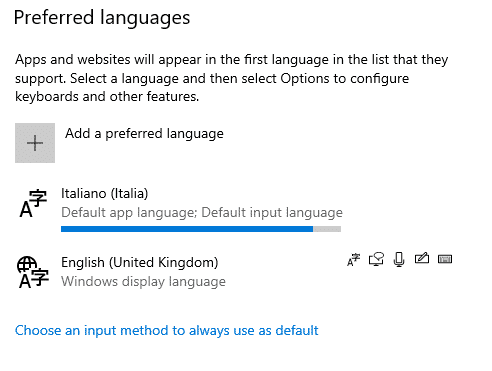
You can now reboot your machine and your Italian language and keyboard settings should all be working.
Downloads
Where to Download Language Packs Safely
Included in this latest up-to-date Windows Language Pack download are the 32-bit and 64-bit language packs for 38 different languages and also the Local Experience Packs to go with them.
Legacy Packs
The table below contains the links for all language pack downloads. Some browsers have trouble downloading the CAB files, so if you do have any trouble downloading from the links in the table, right-click and copy the link and paste the address into your web browser or right click and select Save As.
Windows Language Pack Codes
The below is the full list of codes from Microsoft for how they identify each language pack.
| Display Name | Language Name | EOL | Base Language |
| Arabic (Saudi Arabia) | ar-SA | Partial | en-US |
| fr-FR | |||
| Bulgarian (Bulgaria) | bg-BG | Partial | en-US |
| Chinese (Hong Kong S.A.R.) | zh-HK | Partial | zh-TW |
| en-US | |||
| Chinese (PRC) | zh-CN | Partial | en-US |
| Chinese (Taiwan) | zh-TW | Partial | en-US |
| Croatian (Croatia) | hr-HR | Partial | en-US |
| Czech (Czech Republic) | cs-CZ | Partial | en-US |
| Danish (Denmark) | da-DK | Partial | en-US |
| Dutch (Netherlands) | nl-NL | Full | |
| English (United States) | en-US | Full | |
| Estonian (Estonia) | et-EE | Partial | en-US |
| Finnish (Finland) | fi-FI | Partial | en-US |
| French (France) | fr-FR | Full | |
| German (Germany) | de-DE | Full | |
| Greek (Greece) | el-GR | Partial | en-US |
| Hebrew (Israel) | he-IL | Partial | en-US |
| Hungarian (Hungary) | hu-HU | Partial | en-US |
| Italian (Italy) | it-IT | Full | |
| Japanese (Japan) | ja-JP | Full | |
| Korean (Korea) | ko-KR | Partial | en-US |
| Latvian (Latvia) | lv-LV | Partial | en-US |
| Lithuanian (Lithuania) | lt-LT | Partial | en-US |
| Norwegian, Bokmål (Norway) | nb-NO | Partial | en-US |
| Polish (Poland) | pl-PL | Partial | en-US |
| Portuguese (Brazil) | pt-BR | Partial | en-US |
| Portuguese (Portugal) | pt-PT | Partial | en-US |
| Romanian (Romania) | ro-RO | Partial | en-US |
| Russian (Russia) | ru-RU | Partial | en-US |
| Serbian (Latin, Serbia) | sr-Latn-CS | Partial | en-US |
| Slovak (Slovakia) | sk-SK | Partial | en-US |
| Slovenian (Slovenia) | sl-SI | Partial | en-US |
| Spanish (Spain) | es-ES | Full | |
| Swedish (Sweden) | sv-SE | Partial | en-US |
| Thai (Thailand) | th-TH | Partial | en-US |
| Turkish (Turkey) | tr-TR | Partial | en-US |
| Ukrainian (Ukraine) | uk-UA | Partial | en-US |
FAQ
How do I install language packs offline?
There is a link to our full guide on how to install Windows language packs earlier in this article.
Why is language pack not installing?
Ensure you are using the correct version for your computer.
Can I install multiple languages?
Yes! You can install as many languages as you wish.
Do language packs require internet?
They do to download them initially, but not to install or use them.
Discover more from TechyGeeksHome
Subscribe to get the latest posts sent to your email.