

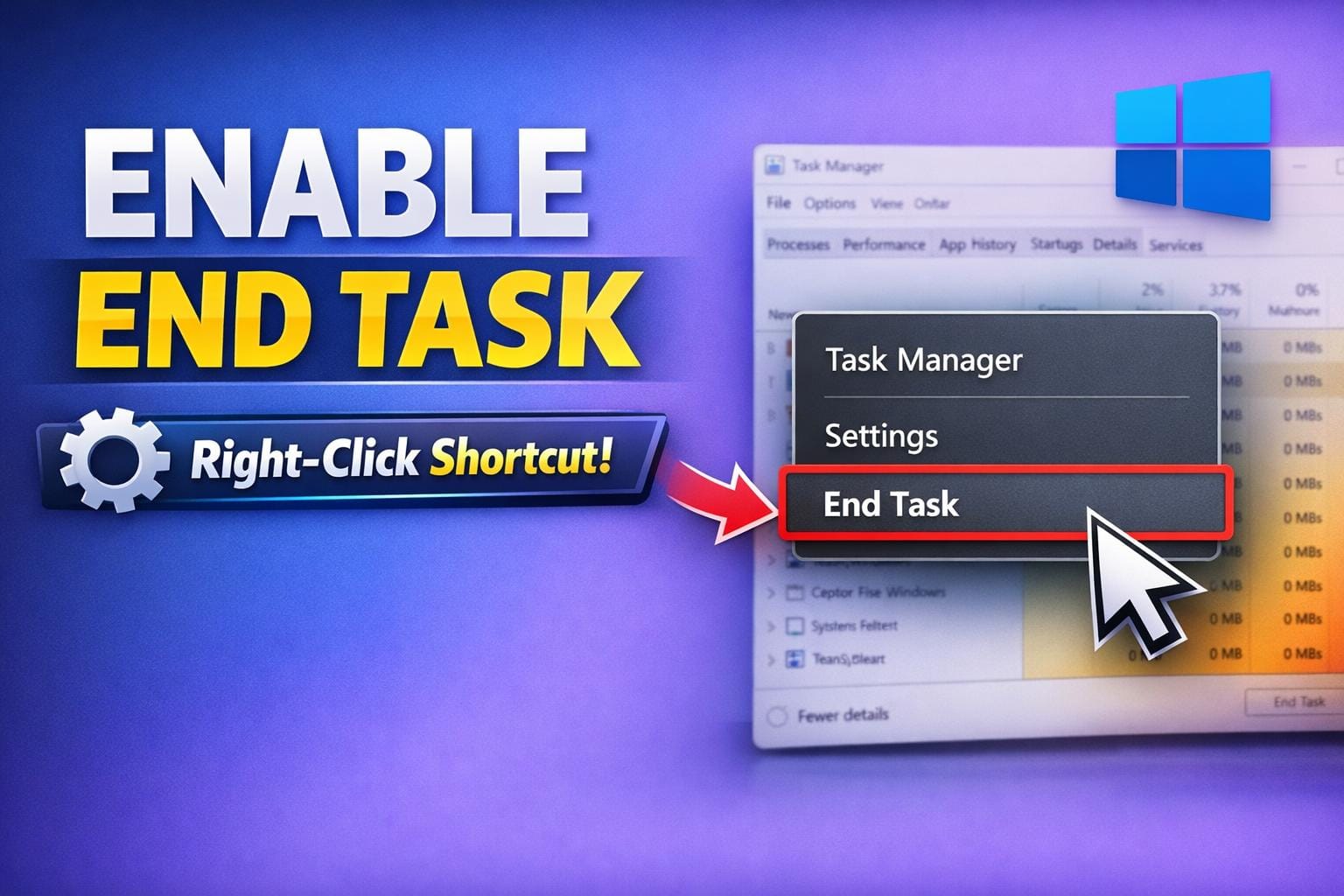
When a program freezes in Windows, the usual solution is to open Task Manager and manually end the process. While effective, this takes several steps and can feel frustrating when you just want to close an unresponsive app quickly.
Windows includes a hidden but official feature that lets you end a task directly from the taskbar using a right‑click menu. Once enabled, it allows you to force‑close frozen apps instantly — no Task Manager required.
In this guide, you’ll learn how to enable the End Task right‑click option in Windows, what it does, and when to use it.
What Is the “End Task” Right‑Click Option?
The End Task option lets you force‑terminate a running app rather than politely closing it.
Normally:
- Clicking Close (X) asks the app to shut down
- End Task immediately stops the app’s process
Once enabled, this option appears when you right‑click an app icon on the taskbar, making it far quicker to deal with frozen or unresponsive software.
Why Enable End Task from the Taskbar?
This feature is especially useful if:
- An app freezes or becomes unresponsive
- The close button does nothing
- Task Manager takes too long to open
- You frequently multitask or troubleshoot apps
Microsoft places this setting under advanced or developer options because it force‑terminates apps, but it is safe for everyday use when used responsibly.
How to Enable End Task from the Taskbar (Windows 11)
Follow these steps to turn on the End Task right‑click option:
Step‑by‑Step Instructions
- Press Win + I to open Settings
- Click System
- Scroll down and select Advanced
- Under Taskbar settings, toggle End Task to On
- Close Settings
You can now right‑click any running app on the taskbar and select End Task to force it to close.
How to Use the End Task Option
Once enabled:
- Right‑click an app icon on the taskbar
- Select End Task
- The app will close immediately
This works even if the app is no longer responding.
Note: This option does not appear for File Explorer and system‑critical processes.
Video Tutorial: Enable End Task in Windows
If you prefer to follow along visually, watch the step‑by‑step video below:
When Should You Use End Task?
Use End Task when:
- An app crashes or freezes
- The app ignores close commands
- You need to regain system performance fast
Avoid using it on apps with unsaved work, as the process is terminated instantly.
Frequently Asked Questions (FAQ)
Is End Task safe to use?
Yes. End Task is safe for normal applications, but you should avoid using it on system or critical processes unless absolutely necessary.
Does this work on Windows 10?
This feature is officially supported in Windows 11. Windows 10 users must still use Task Manager or third‑party tools.
Why is End Task hidden by default?
Microsoft considers it an advanced feature because it forcefully stops processes rather than closing them gracefully.
Can I turn it off again?
Yes. You can disable the feature at any time by returning to the same settings page and toggling End Task off.
About The Author

Related
Discover more from TechyGeeksHome
Subscribe to get the latest posts sent to your email.