

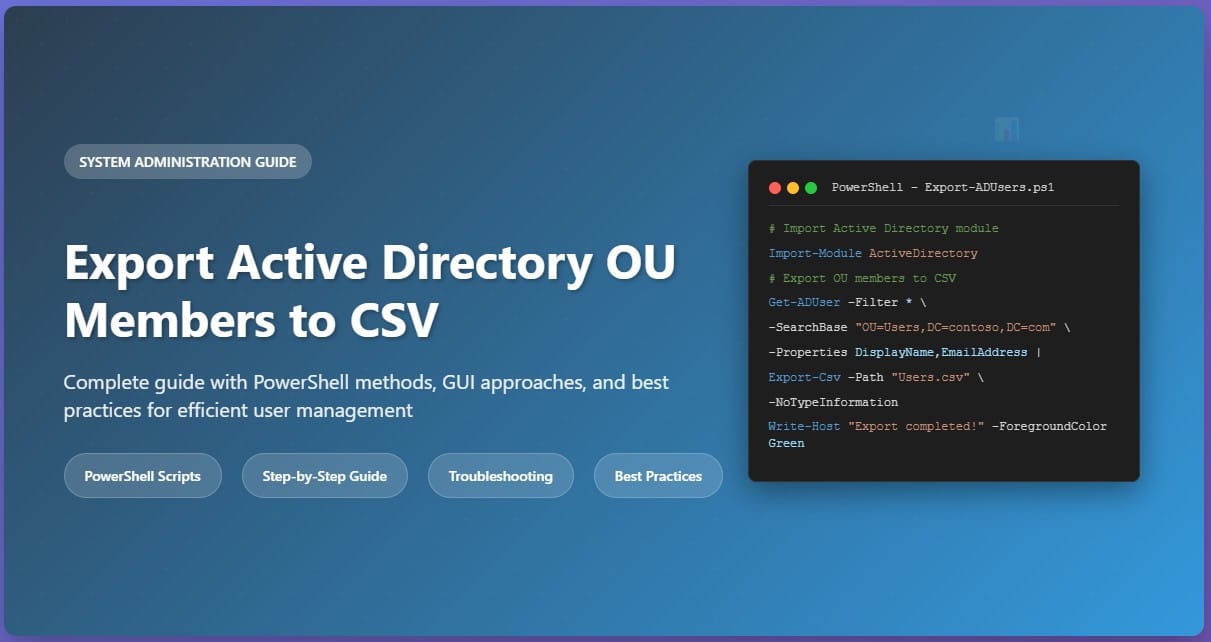
Exporting Active Directory Organizational Unit (OU) members to CSV format is a common administrative task that enables efficient user management, reporting, and data analysis. This comprehensive guide provides multiple methods to accomplish this task, from PowerShell commands to GUI-based approaches, ensuring you have the right solution for your specific environment and requirements.
1. Prerequisites and Setup
Before beginning the export process, ensure you have the necessary permissions and tools configured properly.
Required Permissions
- Domain user account with read permissions to the target OU
- PowerShell execution policy set to allow script execution
- Active Directory PowerShell module installed
- Network connectivity to domain controllers
Installing Active Directory Module
For Windows 10/11 and Windows Server 2016+, install the RSAT tools:
# Windows 10/11
Get-WindowsCapability -Name RSAT.ActiveDirectory* -Online | Add-WindowsCapability -Online

# Windows Server
Install-WindowsFeature -Name RSAT-AD-PowerShell
2. PowerShell Method (Recommended)
PowerShell provides the most flexible and efficient method for exporting OU members. The following examples demonstrate various approaches from basic to advanced implementations.
Basic Export Command
The simplest approach exports all users from a specific OU:
Import-Module ActiveDirectory

Get-ADUser -Filter * -SearchBase "OU=Users,DC=contoso,DC=com" -Properties DisplayName,EmailAddress,Department,Title |
Select-Object Name,DisplayName,EmailAddress,Department,Title,Enabled |
Export-Csv -Path "C:\Exports\OU_Users.csv" -NoTypeInformation
Comprehensive Export with All Attributes
$Properties = @(
    "DisplayName","EmailAddress","Department","Title","Manager",
    "OfficePhone","MobilePhone","Office","Company","Description",
    "LastLogonDate","PasswordLastSet","AccountExpirationDate",
    "LockedOut","PasswordExpired","PasswordNeverExpires"
)

Get-ADUser -Filter * -SearchBase "OU=Sales,OU=Users,DC=contoso,DC=com" -Properties $Properties |
Select-Object Name,SamAccountName,UserPrincipalName,
@{Name="Manager";Expression={(Get-ADUser $_.Manager -ErrorAction SilentlyContinue).Name}},* |
Export-Csv -Path "C:\Exports\Detailed_OU_Export.csv" -NoTypeInformation
3. Advanced PowerShell Techniques
Filtering and Conditional Exports
Export only enabled users from the last 90 days:
$Date = (Get-Date).AddDays(-90)

Get-ADUser -Filter {Enabled -eq $true -and LastLogonDate -gt $Date} -SearchBase "OU=Users,DC=contoso,DC=com" -Properties LastLogonDate,Department,Title |
Select-Object Name,SamAccountName,LastLogonDate,Department,Title |
Export-Csv -Path "C:\Exports\Active_Users_90Days.csv" -NoTypeInformation
Multiple OU Export Script
$OUs = @(
    "OU=Sales,OU=Users,DC=contoso,DC=com",
    "OU=Marketing,OU=Users,DC=contoso,DC=com",
    "OU=IT,OU=Users,DC=contoso,DC=com"
)

$AllUsers = @()

foreach ($OU in $OUs) {
    $Users = Get-ADUser -Filter * -SearchBase $OU -Properties Department,Title,EmailAddress
    $AllUsers += $Users | Select-Object Name,SamAccountName,Department,Title,EmailAddress,
        @{Name="SourceOU";Expression={$OU}}
}

$AllUsers | Export-Csv -Path "C:\Exports\Multiple_OU_Export.csv" -NoTypeInformation
4. GUI-Based Methods
Active Directory Users and Computers (ADUC)
While ADUC doesn’t directly export to CSV, you can use it for smaller exports:
- Open Active Directory Users and Computers
- Navigate to the target OU
- Select all users (Ctrl+A)
- Copy the selection (Ctrl+C)
- Paste into Excel and save as CSV
PowerShell ISE with GUI Elements
Add-Type -AssemblyName System.Windows.Forms

# OU Selection Dialog
$OU = [Microsoft.VisualBasic.Interaction]::InputBox("Enter OU Distinguished Name:", "OU Export", "OU=Users,DC=contoso,DC=com")

# File Save Dialog
$SaveDialog = New-Object System.Windows.Forms.SaveFileDialog
$SaveDialog.Filter = "CSV files (*.csv)|*.csv"
$SaveDialog.ShowDialog()

if ($SaveDialog.FileName) {
    Get-ADUser -Filter * -SearchBase $OU -Properties DisplayName,EmailAddress,Department |
    Export-Csv -Path $SaveDialog.FileName -NoTypeInformation

    [System.Windows.Forms.MessageBox]::Show("Export completed successfully!")
}
5. Troubleshooting Common Issues
| Issue | Solution |
|---|---|
| Module not found error | Install RSAT tools and import ActiveDirectory module |
| Access denied | Verify domain credentials and OU read permissions |
| Empty results | Check OU path syntax and verify users exist in specified OU |
| Slow performance | Limit properties queried and use specific filters instead of -Filter * |
6. Best Practices and Security Considerations
Performance Optimization
- Query only necessary properties to reduce network traffic
- Use specific filters instead of retrieving all users
- Consider pagination for large OUs (use -ResultSetSize parameter)
- Run exports during off-peak hours for large datasets
Security Best Practices
- Store exported files in secure locations with appropriate access controls
- Encrypt sensitive exports containing personal information
- Use service accounts with minimal required permissions
- Implement audit logging for export activities
- Regularly review and clean up old export files
Automation Considerations
- Schedule PowerShell scripts using Task Scheduler
- Implement error handling and notification mechanisms
- Use version control for script management
- Document export procedures and maintain change logs
Conclusion
Exporting Active Directory OU members to CSV format is a fundamental administrative task that can be accomplished through various methods. PowerShell provides the most robust and flexible approach, offering extensive filtering, customization, and automation capabilities. Whether you need a simple one-time export or a comprehensive automated reporting solution, the techniques outlined in this guide provide the foundation for efficient Active Directory user management.
Remember to always follow security best practices, test scripts in non-production environments, and maintain proper documentation of your export procedures. Regular exports can provide valuable insights into user account status, organizational structure, and compliance requirements.
Frequently Asked Questions
What permissions do I need to export Active Directory users?
You need domain user account with read permissions to the target OU and the Active Directory PowerShell module installed.
Can I export users from multiple OUs at once?
Yes, you can use PowerShell scripts to loop through multiple OUs and combine the results into a single CSV file.
What’s the best format for exporting large numbers of users?
CSV format is recommended for large exports as it’s lightweight, widely supported, and easy to process with Excel or other tools.
Discover more from TechyGeeksHome
Subscribe to get the latest posts sent to your email.