

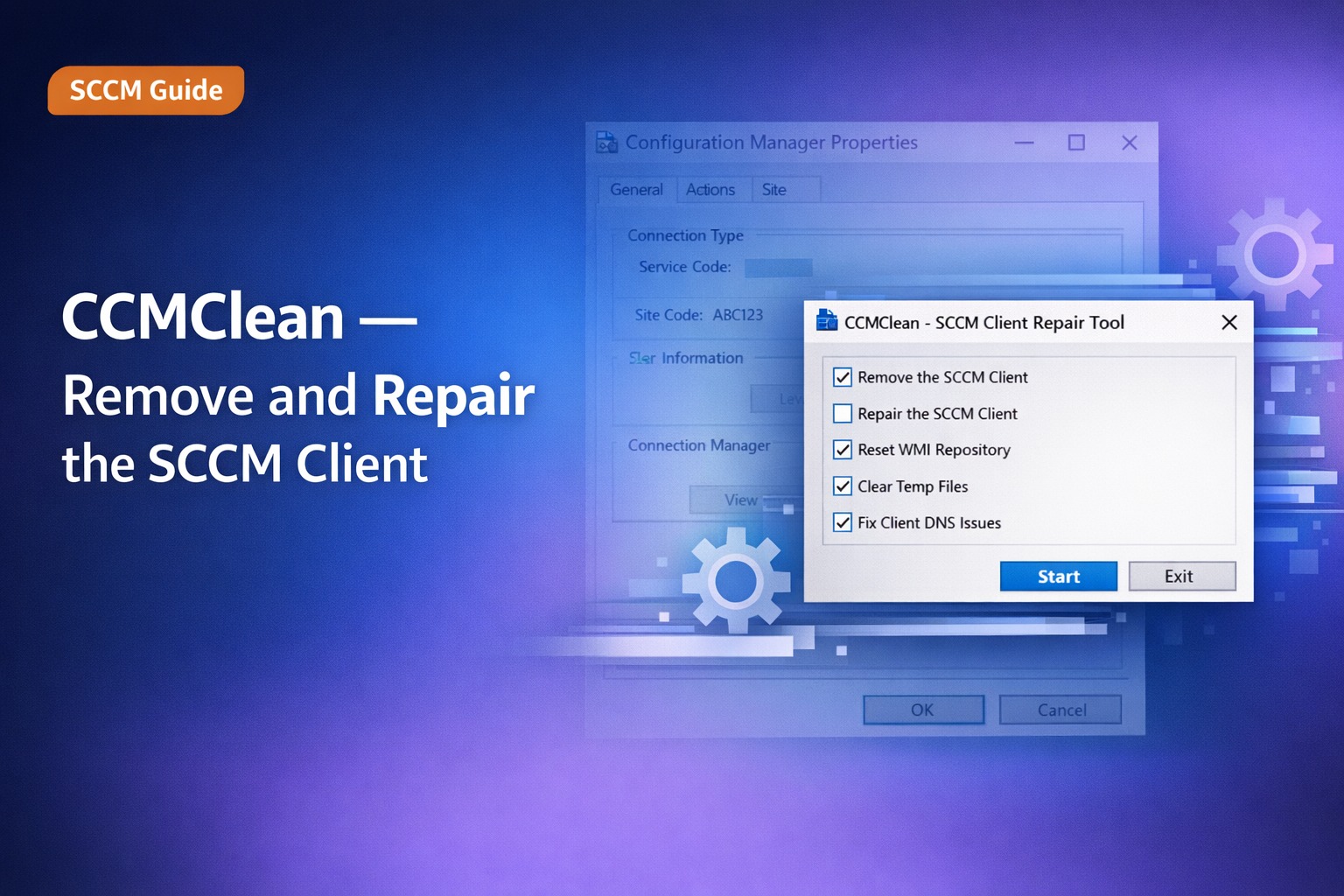
If you have a Configuration Manager client that is not working correctly, the tell-tale signs are missing tabs, missing selections under the Actions tab, and incorrect or missing information on the General tab. Standard fixes like ccmsetup.exe /uninstall often fail to fully clean the client — leaving behind WMI corruptions and registry entries that cause the reinstalled client to behave the same way. The only reliable fix is a complete removal using CCMClean.
What is CCMClean?
CCMClean is a free utility developed by TechyGeeksHome that completely removes the SCCM/ConfigMgr client from a Windows machine. Unlike the standard ccmsetup.exe /uninstall command, CCMClean removes everything — registry keys, WMI entries, services, files and folders — leaving the machine in a completely clean state ready for a fresh client installation.
Symptoms of a Broken SCCM Client
- Missing tabs in the Configuration Manager control panel applet
- Missing selections under the Actions tab
- Incorrect or missing information on the General tab
- Client shows as active in the console but not receiving policies
- Software Centre not loading or showing no applications
- Hardware inventory not updating
- Client stuck in provisioning mode
Why ccmsetup /uninstall Is Not Enough
The standard uninstall command ccmsetup.exe /uninstall removes the core client files but frequently leaves behind corrupted WMI entries, orphaned registry keys and residual services. When the client is reinstalled onto a machine with these remnants, it inherits the same corruption and exhibits the same symptoms. CCMClean addresses this by performing a deep clean before reinstallation.
How to Use CCMClean
- Download CCMClean from the link below
- Copy CCMClean.exe to the affected machine
- Right-click CCMClean.exe and select Run as Administrator
- CCMClean will automatically detect and remove all SCCM client components
- Once complete, reboot the machine — this is essential to ensure a clean OS state
- Redeploy the SCCM client via client push from the CM server or manual installation
- Verify the new installation by checking the Configuration Manager control panel applet
After the reboot and fresh client installation you should see a fully working Configuration Manager client with all tabs and actions present.
Download CCMClean
Download CCMClean from our downloads page — completely free:
Enterprise Deployment — Run CCMClean Remotely via SCCM
For IT administrators needing to fix multiple machines, CCMClean can be deployed remotely. Package CCMClean.exe as an SCCM application or script and target your affected collection. Use the following command line for silent execution:
CCMClean.exe /silentAlternatively use PowerShell to run it remotely against individual machines:
Invoke-Command -ComputerName PC001 -ScriptBlock {
    Start-Process "servershareCCMClean.exe" -ArgumentList "/silent" -Wait -Verb RunAs
    Restart-Computer -Force
}
See our SCCM software deployment guide for full details on packaging and deploying scripts via Configuration Manager.
Frequently Asked Questions
Is CCMClean safe to use?
CCMClean is not officially supported by Microsoft, so you use it at your own risk. However it has been used successfully by thousands of IT administrators since its release and is widely trusted in the SCCM community. Always test on a non-production machine first and ensure you have a way to redeploy the SCCM client before running it.
Does CCMClean work on Windows 10 and Windows 11?
Yes — CCMClean works on all modern versions of Windows including Windows 10 and Windows 11, as well as Windows Server 2016, 2019 and 2022.
What is the difference between CCMClean and ccmsetup /uninstall?
ccmsetup /uninstall removes the core client files but often leaves behind WMI entries, registry keys and services that cause problems when the client is reinstalled. CCMClean performs a complete deep clean removing everything including WMI namespaces, registry entries, services and all residual files.
Do I need to reboot after running CCMClean?
Yes — a reboot is essential after running CCMClean. Without a reboot some services and WMI entries may still be loaded in memory. Always reboot before reinstalling the SCCM client.
The SCCM client still has problems after using CCMClean — what do I do?
If the client still has issues after CCMClean and a fresh reinstall, check the WMI repository health using: winmgmt /verifyrepository. If it returns inconsistent, run: winmgmt /resetrepository to rebuild the WMI repository, then run CCMClean again before reinstalling the client.
Can I use CCMClean during SCCM OSD task sequences?
CCMClean is not typically needed during OSD as the client is being freshly installed. It is intended for repairing existing broken installations on machines already in production.
About The Author

Related
Discover more from TechyGeeksHome
Subscribe to get the latest posts sent to your email.