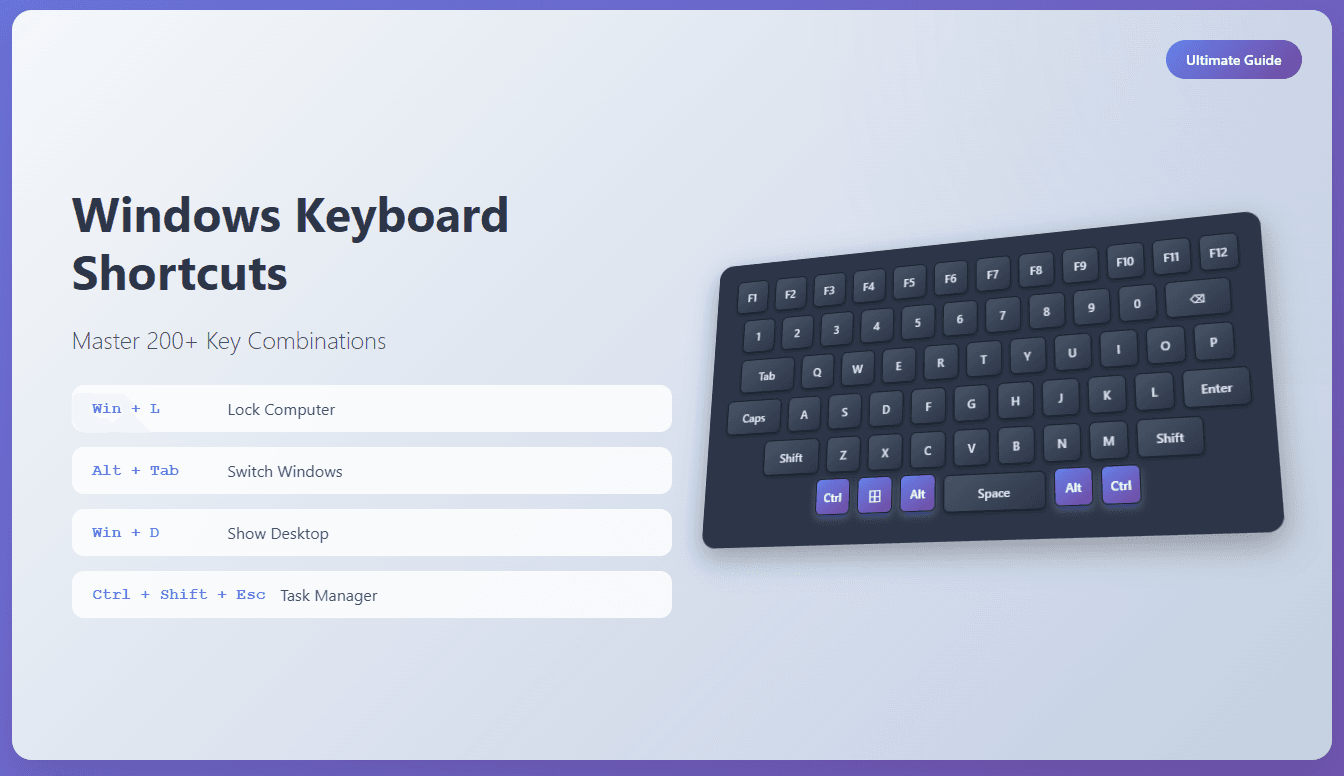
Are you tired of constantly reaching for your mouse to perform simple tasks on your Windows computer? Keyboard shortcuts are the secret weapon of productivity experts, allowing you to navigate Windows faster and more efficiently than ever before. Whether you’re using Windows 10 or Windows 11, mastering these keyboard combinations will transform how you interact with your computer.
Windows Key Shortcuts
The Windows key (⊞ Win) is your gateway to system-wide functionality. These shortcuts work across all Windows versions and are essential for efficient navigation.
Basic Windows Key Operations
Shortcut
Function
Explanation
Win
Open Start Menu
Opens the Start menu or Start screen in Windows 8/10/11
Win + A
Open Action Center/Quick Settings
Windows 10: Action Center; Windows 11: Quick Settings panel
Win + B
Focus Notification Area
Highlights the system tray/notification area
Win + C
Open Cortana/Copilot
Windows 10: Cortana; Windows 11: Microsoft Copilot
Win + D
Show/Hide Desktop
Minimizes all windows to show desktop; press again to restore
Win + E
Open File Explorer
Instantly opens Windows File Explorer
Win + F
Open Feedback Hub
Opens Microsoft Feedback Hub application
Win + G
Open Xbox Game Bar
Opens gaming overlay for screenshots, recording, and performance
Win + H
Open Voice Typing/Dictation
Activates speech-to-text input
Win + I
Open Settings
Opens Windows Settings app
Win + K
Open Connect Panel
Shows available wireless displays and audio devices
Win + L
Lock Computer
Locks your PC and returns to login screen
Win + M
Minimize All Windows
Minimizes all open windows
Win + N
Open Notification Center
Windows 11: Opens notification center and calendar
Win + O
Lock Screen Orientation
Locks screen rotation on tablets and convertible devices
Win + P
Project Display Options
Opens display projection options for multiple monitors
Win + R
Open Run Dialog
Opens the Run command dialog box
Win + S
Open Search
Opens Windows Search
Win + T
Cycle Through Taskbar
Cycles through applications on the taskbar
Win + U
Open Accessibility Settings
Opens Ease of Access/Accessibility settings
Win + V
Open Clipboard History
Shows clipboard history (must be enabled in settings)
Win + W
Open Widgets
Windows 11: Opens the widgets panel
Win + X
Open Quick Link Menu
Opens power user menu with administrative tools
Win + Y
Switch Mixed Reality
Switches input between desktop and Mixed Reality
Win + Z
Open Snap Layouts
Windows 11: Shows window snapping layout options
Windows Key + Arrow Keys (Window Snapping)
Shortcut
Function
Explanation
Win + ↑
Maximize Window
Maximizes the current active window
Win + ↓
Minimize/Restore Window
Minimizes window or restores if already minimized
Win + ←
Snap Left
Snaps current window to left half of screen
Win + →
Snap Right
Snaps current window to right half of screen
Win + Shift + ↑
Maximize Vertically
Stretches window to full height while maintaining width
Win + Shift + ↓
Restore Vertical Size
Restores window to original vertical size
Win + Shift + ←
Move to Left Monitor
Moves window to monitor on the left
Win + Shift + →
Move to Right Monitor
Moves window to monitor on the right
Windows Key + Number Keys (Taskbar Navigation)
Shortcut
Function
Explanation
Win + 1
Open/Switch to First Taskbar Item
Opens or switches to the first pinned application
Win + 2
Open/Switch to Second Taskbar Item
Opens or switches to the second pinned application
Win + 3-9
Open/Switch to Nth Taskbar Item
Opens or switches to the corresponding taskbar position
Win + 0
Open/Switch to Tenth Taskbar Item
Opens or switches to the tenth pinned application
Win + Shift + 1-9
Open New Instance
Opens a new instance of the application at that position
Win + Ctrl + 1-9
Switch to Last Active Window
Switches to the last active window of that application
Windows Key + Function Keys
Shortcut
Function
Explanation
Win + F1
Open Windows Help
Opens Windows Help and Support
Win + Pause
Open System Properties
Opens System Information/About This PC
Ctrl Key Combinations
Control (Ctrl) key combinations are fundamental for text editing, file operations, and application control.
Universal Ctrl Shortcuts
Shortcut
Function
Explanation
Ctrl + A
Select All
Selects all content in current window or field
Ctrl + C
Copy
Copies selected item to clipboard
Ctrl + V
Paste
Pastes clipboard content
Ctrl + X
Cut
Cuts selected item to clipboard
Ctrl + Z
Undo
Undoes the last action
Ctrl + Y
Redo
Redoes the previously undone action
Ctrl + S
Save
Saves current document or file
Ctrl + O
Open
Opens file dialog
Ctrl + N
New
Creates new document or window
Ctrl + P
Print
Opens print dialog
Ctrl + F
Find
Opens find/search dialog
Ctrl + H
Replace
Opens find and replace dialog
Ctrl + W
Close Window/Tab
Closes current window or tab
Ctrl + Q
Quit Application
Closes entire application
Advanced Ctrl Combinations
Shortcut
Function
Explanation
Ctrl + Shift + N
Create New Folder
Creates new folder in File Explorer
Ctrl + Shift + Esc
Open Task Manager
Directly opens Task Manager
Ctrl + Alt + Del
Security Options
Opens security screen with lock, sign out, task manager options
Ctrl + Alt + Tab
Persistent App Switcher
Opens app switcher that stays open
Ctrl + Shift + V
Paste as Plain Text
Pastes without formatting (app-dependent)
Ctrl + Shift + T
Reopen Closed Tab
Reopens recently closed tab in browsers
Ctrl + Tab
Switch Tabs
Cycles through tabs in applications
Ctrl + Shift + Tab
Switch Tabs Backward
Cycles through tabs in reverse order
Ctrl + F4
Close Document/Tab
Closes current document within application
Ctrl + F5
Hard Refresh
Refreshes page ignoring cache (browsers)
Text Navigation with Ctrl
Shortcut
Function
Explanation
Ctrl + →
Move One Word Right
Jumps cursor to next word
Ctrl + ←
Move One Word Left
Jumps cursor to previous word
Ctrl + ↑
Move One Paragraph Up
Jumps cursor to previous paragraph
Ctrl + ↓
Move One Paragraph Down
Jumps cursor to next paragraph
Ctrl + Home
Go to Beginning
Moves cursor to start of document
Ctrl + End
Go to End
Moves cursor to end of document
Ctrl + Shift + →
Select Word Right
Selects text one word to the right
Ctrl + Shift + ←
Select Word Left
Selects text one word to the left
Ctrl + Shift + Home
Select to Beginning
Selects from cursor to start of document
Ctrl + Shift + End
Select to End
Selects from cursor to end of document
Alt Key Combinations
Alt key shortcuts provide access to menus, window controls, and special functions.
Essential Alt Shortcuts
Shortcut
Function
Explanation
Alt + Tab
Switch Between Apps
Cycles through open applications
Alt + Shift + Tab
Switch Apps Backward
Cycles through applications in reverse
Alt + F4
Close Window
Closes current window or application
Alt + Space
Window Menu
Opens window control menu (minimize, maximize, close)
Alt + Enter
Properties
Opens properties dialog for selected item
Alt + Esc
Cycle Windows
Cycles through windows in order they were opened
Alt + PrtScn
Screenshot Active Window
Captures only the active window
Alt + D
Focus Address Bar
Focuses address bar in File Explorer or browsers
Alt + F
File Menu
Opens File menu in applications
Alt + E
Edit Menu
Opens Edit menu in applications
Alt + V
View Menu
Opens View menu in applications
Alt + T
Tools Menu
Opens Tools menu in applications
Alt + H
Help Menu
Opens Help menu in applications
Alt + Number Combinations
Shortcut
Function
Explanation
Alt + 0-9
Menu Access Keys
Accesses menu items by their underlined letters
Alt + Underlined Letter
Menu Navigation
Activates menu item with underlined letter
Special Alt Functions
Shortcut
Function
Explanation
Alt + Shift
Switch Keyboard Language
Changes input language (if multiple languages installed)
Alt + Ctrl + Shift
Switch Keyboard Layout
Changes keyboard layout
Alt + F10
Maximize Window
Alternative way to maximize current window
Alt + F5
Restore Window
Restores window to previous size
Alt + F9
Minimize Window
Minimizes current window
Function Key Shortcuts (F1-F12)
Function keys provide quick access to common operations and vary slightly between applications.
Standard Function Key Operations
Key
Function
Explanation
F1
Help
Opens help documentation for current application
F2
Rename
Renames selected file or folder; edits cell in Excel
F3
Search
Opens search function in current application
F4
Address Bar
Shows address bar dropdown in File Explorer
F5
Refresh
Refreshes current window or webpage
F6
Navigate Elements
Cycles through screen elements or panes
F7
Spell Check
Runs spell check in Office applications
F8
Safe Mode
Accesses startup options during boot
F9
Refresh/Calculate
Refreshes document or calculates formulas
F10
Menu Bar
Activates menu bar in applications
F11
Full Screen
Toggles full-screen mode in browsers and apps
F12
Save As
Opens Save As dialog in Office applications
Function Keys with Modifiers
Shortcut
Function
Explanation
Shift + F3
Change Case
Changes text case in Word (UPPER, lower, Title)
Shift + F7
Thesaurus
Opens thesaurus in Word
Shift + F10
Context Menu
Opens right-click context menu
Shift + F11
New Worksheet
Inserts new worksheet in Excel
Shift + F12
Save
Saves current document
Ctrl + F1
Toggle Ribbon
Shows/hides ribbon in Office applications
Ctrl + F2
Print Preview
Shows print preview in Office applications
Ctrl + F4
Close Document
Closes current document in Office applications
Ctrl + F5
Hard Refresh
Refreshes ignoring cache
Ctrl + F6
Switch Documents
Switches between open documents
Ctrl + F9
Insert Field
Inserts field code in Word
Ctrl + F10
Maximize/Restore
Maximizes or restores window
Ctrl + F11
Full Screen
Toggles full screen in Office applications
Ctrl + F12
Open
Opens file dialog
Alt + F4
Close Application
Closes entire application
Alt + F8
Macro Dialog
Opens macro dialog in Office applications
Alt + F11
VBA Editor
Opens Visual Basic Editor in Office applications
Shift Key Combinations
Shift key combinations are primarily used for text selection and extended functionality.
Text Selection with Shift
Shortcut
Function
Explanation
Shift + →
Select Right
Selects one character to the right
Shift + ←
Select Left
Selects one character to the left
Shift + ↑
Select Up
Selects one line up
Shift + ↓
Select Down
Selects one line down
Shift + Home
Select to Line Start
Selects from cursor to beginning of line
Shift + End
Select to Line End
Selects from cursor to end of line
Shift + Page Up
Select Page Up
Selects one page up
Shift + Page Down
Select Page Down
Selects one page down
Shift + Ctrl + →
Select Word Right
Selects one word to the right
Shift + Ctrl + ←
Select Word Left
Selects one word to the left
Shift + Ctrl + ↑
Select Paragraph Up
Selects to previous paragraph
Shift + Ctrl + ↓
Select Paragraph Down
Selects to next paragraph
Special Shift Functions
Shortcut
Function
Explanation
Shift + Delete
Permanent Delete
Deletes file permanently (bypasses Recycle Bin)
Shift + Insert
Paste
Alternative paste command
Shift + F10
Context Menu
Opens right-click menu
Shift + Click
Range Selection
Selects range from last click to current click
Shift + Tab
Reverse Tab
Moves to previous field or tab stop
Shift + Enter
Line Break
Inserts line break without paragraph break
Shift + Space
Non-breaking Space
Inserts non-breaking space
Text Editing Shortcuts
These shortcuts work across most text editing applications and are essential for efficient writing.
Basic Text Operations
Shortcut
Function
Explanation
Ctrl + A
Select All Text
Selects all text in current field or document
Ctrl + C
Copy Text
Copies selected text to clipboard
Ctrl + V
Paste Text
Pastes text from clipboard
Ctrl + X
Cut Text
Cuts selected text to clipboard
Ctrl + Z
Undo
Undoes last text operation
Ctrl + Y
Redo
Redoes previously undone operation
Delete
Delete Forward
Deletes character to the right of cursor
Backspace
Delete Backward
Deletes character to the left of cursor
Ctrl + Delete
Delete Word Forward
Deletes word to the right of cursor
Ctrl + Backspace
Delete Word Backward
Deletes word to the left of cursor
Text Formatting
Shortcut
Function
Explanation
Ctrl + B
Bold
Makes selected text bold
Ctrl + I
Italic
Makes selected text italic
Ctrl + U
Underline
Underlines selected text
Ctrl + Shift + >
Increase Font Size
Increases font size of selected text
Ctrl + Shift + <
Decrease Font Size
Decreases font size of selected text
Ctrl + ]
Increase Font Size
Alternative to increase font size
Ctrl + [
Decrease Font Size
Alternative to decrease font size
Ctrl + =
Subscript
Makes selected text subscript
Ctrl + Shift + =
Superscript
Makes selected text superscript
Advanced Text Navigation
Shortcut
Function
Explanation
Home
Beginning of Line
Moves cursor to start of current line
End
End of Line
Moves cursor to end of current line
Ctrl + Home
Beginning of Document
Moves cursor to start of document
Ctrl + End
End of Document
Moves cursor to end of document
Page Up
Page Up
Moves cursor up one screen
Page Down
Page Down
Moves cursor down one screen
Ctrl + G
Go To
Opens Go To dialog for specific page/line
Ctrl + F
Find
Opens find dialog
Ctrl + H
Find and Replace
Opens find and replace dialog
F3
Find Next
Finds next occurrence of search term
Shift + F3
Find Previous
Finds previous occurrence of search term
File Explorer Shortcuts
Navigate and manage files efficiently with these File Explorer-specific shortcuts.
Navigation Shortcuts
Shortcut
Function
Explanation
Win + E
Open File Explorer
Opens new File Explorer window
Ctrl + N
New Window
Opens new File Explorer window
Ctrl + W
Close Window
Closes current File Explorer window
Alt + D
Focus Address Bar
Highlights address bar for typing
Ctrl + L
Focus Address Bar
Alternative to focus address bar
Alt + ←
Back
Goes to previous folder
Alt + →
Forward
Goes to next folder (if available)
Alt + ↑
Up One Level
Goes to parent folder
F4
Address Bar Dropdown
Shows address bar dropdown with recent locations
F6
Switch Panes
Switches between different panes in File Explorer
File Operations
Shortcut
Function
Explanation
F2
Rename
Renames selected file or folder
Delete
Move to Recycle Bin
Moves selected items to Recycle Bin
Shift + Delete
Permanent Delete
Permanently deletes selected items
Ctrl + C
Copy Files
Copies selected files to clipboard
Ctrl + V
Paste Files
Pastes files from clipboard
Ctrl + X
Cut Files
Cuts selected files to clipboard
Ctrl + A
Select All Files
Selects all files in current folder
Ctrl + Shift + N
New Folder
Creates new folder
Alt + Enter
Properties
Opens properties dialog for selected item
Ctrl + Shift + E
Expand All Folders
Expands all folders in navigation pane
View and Display Options
Shortcut
Function
Explanation
Ctrl + 1
Extra Large Icons
Changes view to extra large icons
Ctrl + 2
Large Icons
Changes view to large icons
Ctrl + 3
Medium Icons
Changes view to medium icons
Ctrl + 4
Small Icons
Changes view to small icons
Ctrl + 5
List View
Changes view to list
Ctrl + 6
Details View
Changes view to details
Ctrl + 7
Tiles View
Changes view to tiles
Ctrl + 8
Content View
Changes view to content
Alt + P
Preview Pane
Toggles preview pane
Alt + Shift + P
Details Pane
Toggles details pane
Ctrl + Shift + 1-8
Sort Options
Various sorting options
Search and Filter
Shortcut
Function
Explanation
Ctrl + E
Search Box
Focuses search box
Ctrl + F
Search Box
Alternative to focus search box
F3
Search Box
Another alternative to focus search box
Ctrl + Shift + F
Advanced Search
Opens advanced search options
Window Management Shortcuts
Master window organization and multitasking with these powerful shortcuts.
Basic Window Operations
Shortcut
Function
Explanation
Alt + Tab
Switch Windows
Cycles through open windows
Alt + Shift + Tab
Switch Windows Backward
Cycles through windows in reverse
Win + Tab
Task View
Opens Task View with thumbnails
Alt + F4
Close Window
Closes current window
Alt + Space
Window Menu
Opens window control menu
Alt + F5
Restore Window
Restores window to previous size
Alt + F9
Minimize Window
Minimizes current window
Alt + F10
Maximize Window
Maximizes current window
Window Snapping and Arrangement
Shortcut
Function
Explanation
Win + ←
Snap Left
Snaps window to left half of screen
Win + →
Snap Right
Snaps window to right half of screen
Win + ↑
Maximize
Maximizes current window
Win + ↓
Minimize/Restore
Minimizes or restores window
Win + Shift + ←
Move to Left Monitor
Moves window to left monitor
Win + Shift + →
Move to Right Monitor
Moves window to right monitor
Win + Shift + ↑
Stretch Vertically
Stretches window to full height
Win + Shift + ↓
Restore Vertical
Restores vertical size
Win + Home
Minimize Others
Minimizes all windows except current
Advanced Window Management
Shortcut
Function
Explanation
Win + M
Minimize All
Minimizes all windows
Win + Shift + M
Restore All
Restores all minimized windows
Win + D
Show Desktop
Shows desktop (minimizes all windows)
Win + ,
Peek at Desktop
Temporarily shows desktop
Win + Z
Snap Layouts
Shows snap layout options (Windows 11)
Accessibility Shortcuts
These shortcuts help users with disabilities navigate Windows more effectively.
Visual Accessibility
Shortcut
Function
Explanation
Win + Plus (+)
Magnifier On
Turns on Magnifier and zooms in
Win + Minus (-)
Zoom Out
Zooms out in Magnifier
Win + Esc
Close Magnifier
Closes Magnifier
Win + Ctrl + M
Magnifier Settings
Opens Magnifier settings
Win + Ctrl + C
Color Filters
Toggles color filters on/off
Win + Ctrl + N
Narrator Settings
Opens Narrator settings
Win + Ctrl + Enter
Narrator On/Off
Turns Narrator on or off
Win + U
Accessibility Settings
Opens Ease of Access settings
Keyboard Accessibility
Shortcut
Function
Explanation
Shift (5 times)
Sticky Keys
Toggles Sticky Keys on/off
Right Shift (8 seconds)
Filter Keys
Toggles Filter Keys on/off
Num Lock (5 seconds)
Toggle Keys
Toggles Toggle Keys on/off
Alt + Left Shift + Num Lock
Mouse Keys
Toggles Mouse Keys on/off
Alt + Left Shift + PrtScn
High Contrast
Toggles High Contrast on/off
Win + Ctrl + O
On-Screen Keyboard
Opens On-Screen Keyboard
Narrator Shortcuts
Shortcut
Function
Explanation
Caps Lock + Space
Narrator Commands
Activates Narrator command mode
Caps Lock + Enter
Primary Action
Performs primary action on current item
Caps Lock + Shift + Enter
Secondary Action
Performs secondary action on current item
Caps Lock + →
Next Item
Moves to next item
Caps Lock + ←
Previous Item
Moves to previous item
Caps Lock + F1
Narrator Help
Opens Narrator help
Caps Lock + Esc
Stop Reading
Stops Narrator from reading
Command Prompt Shortcuts
Navigate and use Command Prompt more efficiently with these shortcuts.
Basic Command Prompt Operations
Shortcut
Function
Explanation
Ctrl + C
Copy Text
Copies selected text (Windows 10+)
Ctrl + V
Paste Text
Pastes text from clipboard (Windows 10+)
Ctrl + A
Select All
Selects all text in command prompt
Ctrl + F
Find
Opens find dialog
Ctrl + M
Mark Mode
Enters mark mode for text selection
Tab
Auto-complete
Auto-completes file and folder names
↑
Previous Command
Recalls previous command
↓
Next Command
Recalls next command in history
F7
Command History
Shows command history in popup
F8
Search History
Searches command history
F9
Run by Number
Runs command by history number
Text Editing in Command Prompt
Shortcut
Function
Explanation
Home
Beginning of Line
Moves cursor to start of line
End
End of Line
Moves cursor to end of line
Ctrl + ←
Previous Word
Moves cursor to previous word
Ctrl + →
Next Word
Moves cursor to next word
Ctrl + Home
Beginning of Buffer
Moves to beginning of command buffer
Ctrl + End
End of Buffer
Moves to end of command buffer
Delete
Delete Character
Deletes character at cursor
Backspace
Delete Previous
Deletes character before cursor
Ctrl + Delete
Delete Word
Deletes word at cursor
Ctrl + Backspace
Delete Previous Word
Deletes word before cursor
Command Prompt Control
Shortcut
Function
Explanation
Ctrl + C
Break/Cancel
Cancels current command
Ctrl + Z
End of File
Sends end-of-file character
Ctrl + S
Pause Output
Pauses command output
Ctrl + Q
Resume Output
Resumes paused output
Alt + Enter
Full Screen
Toggles full screen mode
Alt + F4
Close Window
Closes Command Prompt window
Virtual Desktop Shortcuts
Manage multiple virtual desktops efficiently with these Windows 10/11 shortcuts.
Virtual Desktop Management
Shortcut
Function
Explanation
Win + Tab
Task View
Opens Task View showing all desktops
Win + Ctrl + D
Create Desktop
Creates new virtual desktop
Win + Ctrl + F4
Close Desktop
Closes current virtual desktop
Win + Ctrl + ←
Previous Desktop
Switches to previous virtual desktop
Win + Ctrl + →
Next Desktop
Switches to next virtual desktop
Moving Windows Between Desktops
Shortcut
Function
Explanation
Win + Shift + Ctrl + ←
Move Window Left
Moves current window to previous desktop
Win + Shift + Ctrl + →
Move Window Right
Moves current window to next desktop
Screenshot and Capture Shortcuts
Capture your screen content quickly with these built-in shortcuts.
Screenshot Options
Shortcut
Function
Explanation
PrtScn
Full Screen Screenshot
Copies entire screen to clipboard
Alt + PrtScn
Active Window Screenshot
Copies active window to clipboard
Win + PrtScn
Save Full Screenshot
Saves full screen screenshot to Pictures folder
Win + Shift + S
Snipping Tool
Opens Snipping Tool for custom area capture
Win + Alt + PrtScn
Game Screenshot
Captures game screenshot (Xbox Game Bar)
Screen Recording
Shortcut
Function
Explanation
Win + G
Xbox Game Bar
Opens Game Bar for recording and screenshots
Win + Alt + R
Start/Stop Recording
Starts or stops screen recording
Win + Alt + G
Record Last 30 Seconds
Records the last 30 seconds of activity
Pro Tips for Mastering Windows Shortcuts
1. Start Small
Don’t try to memorize all shortcuts at once. Start with the most common ones:
Win + L (Lock computer)
Alt + Tab (Switch windows)
Win + D (Show desktop)
Ctrl + C/V (Copy/Paste)
2. Practice Daily
Use shortcuts in your daily workflow. The more you use them, the more natural they become.
3. Customize Your Experience
Enable clipboard history (Win + V)
Set up virtual desktops for different projects
Use window snapping for better multitasking
4. Learn Application-Specific Shortcuts
While this guide covers Windows system shortcuts, each application has its own shortcuts. Learn the ones for your most-used programs.
5. Use Sticky Notes
Keep a list of new shortcuts you’re learning on your desktop until they become second nature.
Conclusion
Mastering Windows keyboard shortcuts is one of the best investments you can make in your productivity. These key combinations will save you countless hours of mouse clicking and menu navigation. Start with the basics, practice regularly, and gradually incorporate more advanced shortcuts into your workflow.
Remember that muscle memory takes time to develop, so be patient with yourself as you learn. Soon, these shortcuts will become second nature, and you’ll wonder how you ever worked without them.
Whether you’re a casual user looking to speed up basic tasks or a power user seeking maximum efficiency, these shortcuts will transform your Windows experience. Happy typing!
Have a favorite Windows shortcut that wasn’t mentioned? Share it in the comments below! And don’t forget to bookmark this guide for quick reference.
Tags: Windows, Keyboard Shortcuts, Productivity, Windows 10, Windows 11, Efficiency, Computer Tips
Discover more from TechyGeeksHome
Subscribe to get the latest posts sent to your email.