

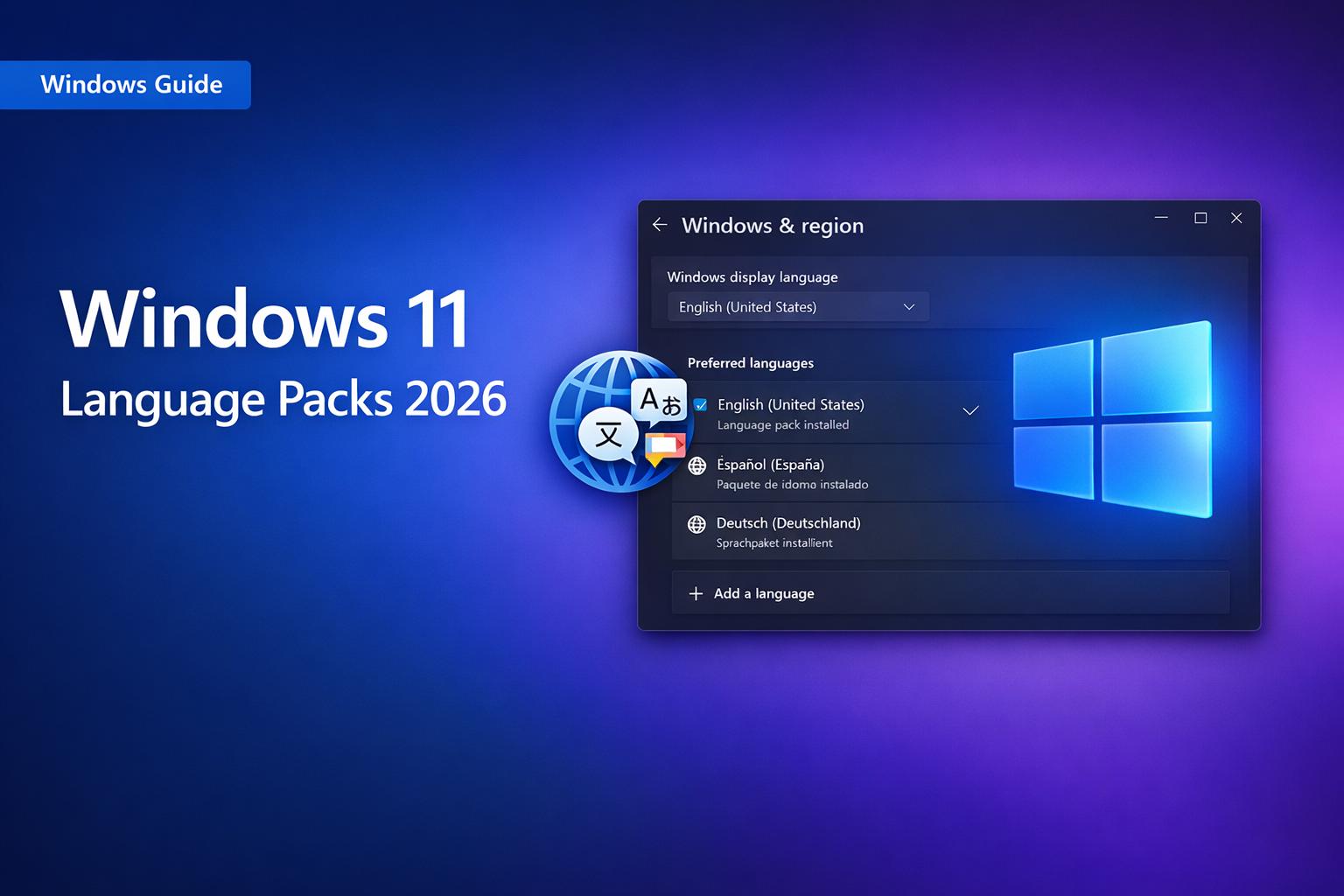
Unlike Windows 10, Microsoft does not provide direct offline language pack downloads for Windows 11. Instead, language packs are distributed through Windows Update, the Microsoft Update Catalog, or via VLSC for enterprise customers. This guide covers all available methods for installing Windows 11 language packs in 2026.
Windows 11 Language Pack — What Has Changed from Windows 10?
In Windows 10, Microsoft provided direct .cab language pack downloads that could be installed offline using DISM. Windows 11 has moved away from this approach. Language packs are now primarily delivered through:
- Windows Update — the simplest method for standalone machines
- Microsoft Update Catalog — for manual download and offline installation
- DISM with mounted ISO — for enterprise imaging and deployment
- VLSC (Volume Licensing Service Centre) — for enterprise customers with volume licensing
- Microsoft Intune / SCCM — for managed enterprise deployment
Method 1 — Install Windows 11 Language Pack via Settings (Easiest)
For standalone machines or home users, installing via Settings is the simplest method:
- Open Settings → Time and Language → Language and Region
- Click Add a language
- Search for your required language and select it
- Check Install language pack and optionally set as display language
- Click Install — Windows Update will download and install the language pack
- Sign out and back in or restart to apply the new display language
Method 2 — Download from Microsoft Update Catalog
The Microsoft Update Catalog provides language pack CAB and MSU files that can be downloaded and installed offline. This is useful when machines have limited or no internet access.
- Go to catalog.update.microsoft.com
- Search for Windows 11 Language Pack followed by your language name
- Filter results by your Windows 11 version (23H2, 24H2 etc)
- Download the .cab or .msu file
- Install the .msu file by double-clicking, or use DISM for .cab files
Install CAB Language Pack via DISM
# Install language pack CAB file using DISM
# Run as Administrator
DISM /Online /Add-Package /PackagePath:"C:\pathto\languagepack.cab"
Method 3 — Install via DISM with Windows 11 ISO (Enterprise)
For enterprise environments, language packs can be extracted from the Windows 11 language pack ISO and applied to a mounted WIM image or a running system. This is the recommended approach for IT administrators maintaining deployment images.
Step 1 — Obtain the Language Pack ISO
Enterprise customers can download the Windows 11 Language Pack ISO from VLSC (Volume Licensing Service Centre) at microsoft.com/licensing/servicecenter. The ISO contains language packs for all supported languages.
Evaluation customers can find language pack ISOs via the Microsoft Evaluation Center or MSDN/Visual Studio subscriptions.
Step 2 — Mount the Language Pack ISO
# Mount the language pack ISO
Mount-DiskImage -ImagePath "C:\pathto\LanguagePack.iso"
Step 3 — Add Language Pack to Running System
# Add language pack from mounted ISO to running Windows 11
# Replace D: with the drive letter of your mounted ISO
# Replace fr-FR with your target language code
DISM /Online /Add-Package /PackagePath:"D:\LanguagesAndOptionalFeatures\Microsoft-Windows-Client-Language-Pack_x64_fr-fr.cab"
Step 4 — Add Language Pack to WIM Image (Offline)
# Mount WIM image
DISM /Mount-Image /ImageFile:"C:\Images\install.wim" /Index:1 /MountDir:"C:Mount"

# Add language pack from ISO
DISM /Image:"C:Mount" /Add-Package /PackagePath:"D:\LanguagesAndOptionalFeatures\Microsoft-Windows-Client-Language-Pack_x64_fr-fr.cab"

# Add language features
DISM /Image:"C:\Mount" /Add-Package /PackagePath:"D:\LanguagesAndOptionalFeatures\Microsoft-Windows-LanguageFeatures-Basic-fr-fr-Package~31bf3856ad364e35~amd64~~.cab"

# Commit and unmount
DISM /Unmount-Image /MountDir:"C:\Mount" /Commit
Method 4 — Deploy via SCCM or Intune
For large-scale enterprise deployment, language packs can be deployed via SCCM or Intune using PowerShell scripts or OSD task sequences.
PowerShell — Install Language Pack on Running System
# Install a language pack using PowerShell on Windows 11
# Requires internet access — downloads from Windows Update
Install-Language -Language fr-FR

# Set as system preferred UI language
Set-SystemPreferredUILanguage -Language fr-FR

# Apply language settings to all users
Set-WinUILanguageOverride -Language fr-FR
Windows 11 Language Codes Reference
| Language | Language Code |
|---|---|
| English (UK) | en-GB |
| English (US) | en-US |
| French | fr-FR |
| German | de-DE |
| Spanish | es-ES |
| Italian | it-IT |
| Portuguese (Brazil) | pt-BR |
| Dutch | nl-NL |
| Russian | ru-RU |
| Japanese | ja-JP |
| Chinese (Simplified) | zh-CN |
| Chinese (Traditional) | zh-TW |
| Korean | ko-KR |
| Arabic | ar-SA |
| Polish | pl-PL |
| Swedish | sv-SE |
| Turkish | tr-TR |
| Hungarian | hu-HU |
| Romanian | ro-RO |
| Bulgarian | bg-BG |
Windows 10 Language Packs
If you are looking for Windows 10 language pack offline downloads, we provide direct download links for all Windows 10 language packs:
Windows 10 Language Packs — Offline Downloads
Frequently Asked Questions
Can I download Windows 11 language packs offline like Windows 10?
Not directly — Microsoft removed the standalone offline language pack downloads that were available for Windows 10. Windows 11 language packs must be obtained from Windows Update, the Microsoft Update Catalog, or the Language Pack ISO from VLSC for enterprise customers.
Where can I download the Windows 11 Language Pack ISO?
The Windows 11 Language Pack ISO is available to enterprise customers through VLSC (Volume Licensing Service Centre) at microsoft.com/licensing/servicecenter. MSDN and Visual Studio subscribers can also access it through their subscription portal.
How do I change the display language in Windows 11?
Go to Settings → Time and Language → Language and Region. Under Windows display language select your installed language from the dropdown and click Sign out to apply the change.
Can I add multiple language packs to a Windows 11 WIM image?
Yes — you can add multiple language packs to a WIM image using DISM before deployment. Mount the WIM, add each language pack CAB file using DISM /Add-Package, then commit and unmount. This is the recommended approach for enterprise imaging.
What is the difference between a language pack and a language feature?
A language pack provides the full UI translation including menus, dialogs and system messages. Language features are optional components including Basic typing, Handwriting, Speech and OCR. You can install language features separately using DISM /Add-Package with the feature CAB files from the language pack ISO.
Does installing a Windows 11 language pack require a restart?
Yes — after installing a language pack via DISM or Settings a restart is typically required for the changes to take full effect. When deploying via SCCM or Intune ensure your deployment includes a restart step after language pack installation.
About The Author

Related
Discover more from TechyGeeksHome
Subscribe to get the latest posts sent to your email.