

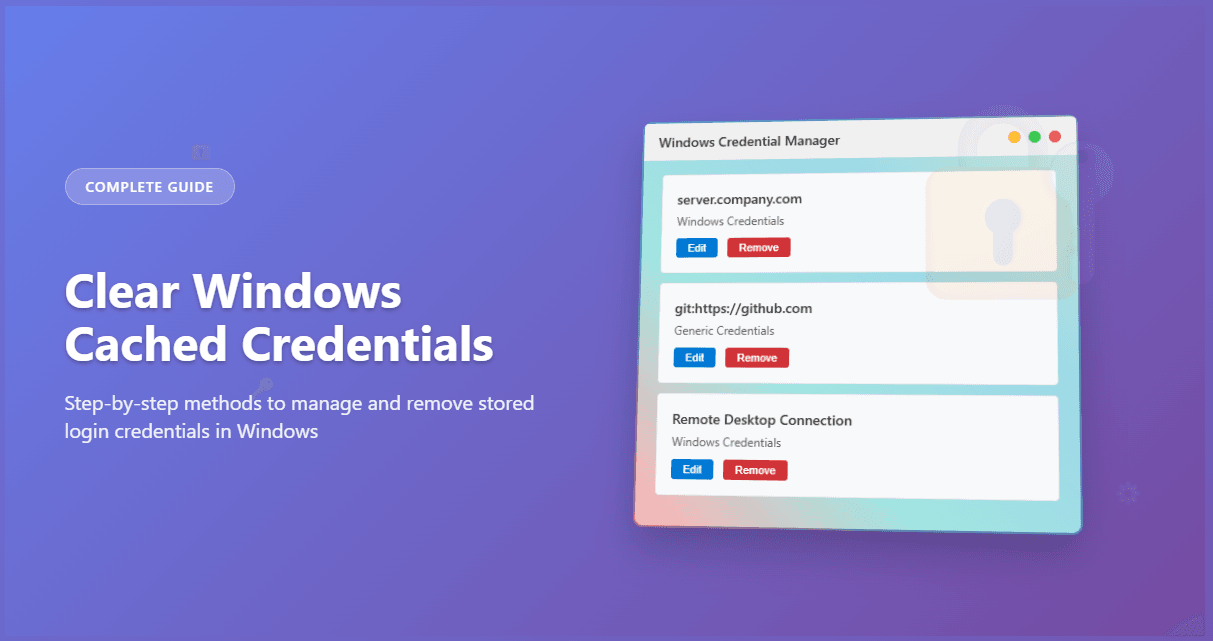
Windows stores your login credentials for various networks, websites, and applications to make future access seamless. However, there are times when you need to clear these cached credentials—whether you’re troubleshooting login issues, switching accounts, or enhancing security. This comprehensive guide will walk you through multiple methods to clear Windows cached credentials effectively.
What Are Windows Cached Credentials?
Windows cached credentials are stored login information that includes usernames, passwords, and authentication tokens for:
- Network drives and shared folders
- Remote desktop connections
- Web applications and websites
- Domain authentication
- VPN connections
- Microsoft Office applications
These credentials are stored in the Windows Credential Manager, which acts as a secure vault for your authentication information.
Why Clear Cached Credentials?
There are several scenarios where clearing cached credentials becomes necessary:
Security Reasons
- Account compromise: If you suspect unauthorized access to your accounts
- Shared computer usage: When multiple users access the same machine
- Employee transitions: When staff members change roles or leave the organization
Troubleshooting Issues
- Login failures: When stored credentials become outdated or corrupted
- Network connectivity problems: When cached network credentials conflict with current settings
- Application authentication errors: When apps can’t authenticate properly
Account Management
- Password changes: After updating passwords for various services
- Account switching: When you need to use different credentials for the same service
- Domain changes: When moving between different network domains
Method 1: Using Windows Credential Manager (GUI)
The most user-friendly approach is through the Windows Credential Manager interface.
Step-by-Step Instructions
- Open Credential Manager
- PressWindows + Rto open the Run dialog
- Typecontrol /name Microsoft.CredentialManagerand press Enter
- Alternatively, search for “Credential Manager” in the Start menu
- Navigate to Credentials
- Click on “Windows Credentials” to view stored Windows credentials
- Click on “Web Credentials” to view browser-saved credentials
- Remove Individual Credentials
- Locate the credential you want to remove
- Click on the dropdown arrow next to the credential
- Click “Remove” and confirm the action
- Bulk Removal
- Repeat the process for each credential you want to delete
- There’s no built-in option to clear all credentials at once through the GUI
Method 2: Using Command Prompt
For more advanced users, the command line offers powerful options for credential management.
Clear All Cached Credentials
rundll32.exe keymgr.dll,KRShowKeyMgr
This command opens the Credential Manager, but for programmatic clearing, use:
cmdkey /list
To view all stored credentials, then remove them individually:
cmdkey /delete:targetname
Clear Specific Network Credentials
cmdkey /delete:server:target
Replace “server:target” with the actual server name or IP address.
Clear Domain Credentials
cmdkey /delete:DOMAIN:username
Method 3: Using PowerShell
PowerShell provides more sophisticated credential management capabilities.
List All Credentials
cmdkey /list
Remove Credentials by Pattern
cmdkey /list | Select-String "Target:" | ForEach-Object { $target = ($_ -split ": ")[1] cmdkey /delete:$target}
Clear Specific Credential Types
# Clear all generic credentialsGet-StoredCredential | Where-Object {$_.Type -eq "Generic"} | Remove-StoredCredential# Clear all domain credentialsGet-StoredCredential | Where-Object {$_.Type -eq "DomainPassword"} | Remove-StoredCredential
Method 4: Registry Editing (Advanced)
Warning: Editing the registry can cause system instability if done incorrectly. Always backup your registry before making changes.
Access Registry Editor
- Press Windows + R and type regedit
- Navigate to: HKEY_CURRENT_USER\Software\Microsoft\Windows\CurrentVersion\Authentication\LogonUI\SessionData
- Delete the relevant entries carefully
Registry Locations for Credentials
- Generic credentials:HKEY_CURRENT_USER\Software\Microsoft\Windows\CurrentVersion\Authentication\LogonUI
- Domain credentials:HKEY_LOCAL_MACHINE\SECURITY\Policy\Secrets
Method 5: Using Group Policy (Enterprise)
For enterprise environments, Group Policy can manage credential caching.
Configure Group Policy
- Open Group Policy Editor (gpedit.msc)
- Navigate to:Computer Configuration > Windows Settings > Security Settings > Local Policies > Security Options
- Find “Interactive logon: Number of previous logons to cache”
- Set to 0 to disable credential caching
Troubleshooting Common Issues
Credentials Keep Reappearing
If credentials reappear after deletion:
- Check for automatic sign-in: Disable automatic sign-in for applications
- Review browser settings: Clear saved passwords in web browsers
- Examine third-party software: Some applications may restore credentials
Access Denied Errors
When encountering permission issues:
- Run as Administrator: Execute commands with elevated privileges
- Check user permissions: Ensure you have rights to modify credentials
- Disable antivirus temporarily: Some security software may block credential modifications
Network Connectivity Issues
After clearing network credentials:
- Restart network services: Usenet stop workstationandnet start workstation
- Flush DNS cache: Runipconfig /flushdns
- Reset network adapters: Use Network Reset in Windows Settings
Best Practices for Credential Management
Regular Maintenance
- Schedule periodic cleanups: Clear unused credentials monthly
- Monitor credential usage: Review stored credentials regularly
- Update passwords promptly: Change credentials when security is compromised
Security Considerations
- Use strong passwords: Implement complex passwords for all accounts
- Enable two-factor authentication: Add extra security layers where possible
- Limit credential storage: Only store necessary credentials
Documentation
- Maintain credential inventory: Keep track of stored credentials
- Document access requirements: Note which credentials are essential
- Create recovery procedures: Establish processes for credential restoration
Alternative Solutions
Third-Party Credential Managers
Consider using dedicated password managers:
- 1Password: Enterprise-grade password management
- LastPass: Cloud-based credential storage
- Bitwarden: Open-source password manager
- KeePass: Local password database
Windows Hello
Implement Windows Hello for enhanced security:
- Biometric authentication: Use fingerprint or facial recognition
- PIN-based access: Set up secure PIN authentication
- Hardware security keys: Utilize FIDO2 security keys
Conclusion
Clearing Windows cached credentials is an essential skill for maintaining system security and troubleshooting authentication issues. Whether you prefer the graphical interface of Credential Manager or the power of command-line tools, multiple methods are available to suit your technical comfort level.
Remember to approach credential management with caution, especially when using advanced methods like registry editing. Always backup your system before making significant changes, and consider implementing a comprehensive credential management strategy that includes regular maintenance and security best practices.
By following this guide, you’ll be able to effectively manage your Windows cached credentials, ensuring both security and functionality in your computing environment.
Need help with other Windows administration tasks? Check out our related guides on network troubleshooting, user account management, and system security optimization.
Discover more from TechyGeeksHome
Subscribe to get the latest posts sent to your email.